6.3 — Video & Audio
Native <audio> and <video> elements replace outdated third‑party plugins with hardware‑accelerated playback. They provide direct hooks into the operating system’s media pipeline for smooth, battery‑efficient streaming and synchronized accessibility tracks.
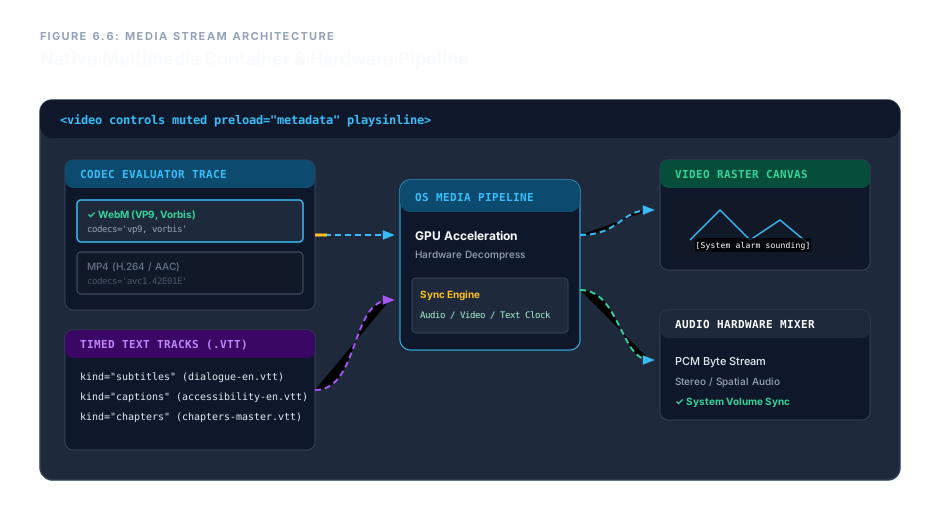
The Media Containers: <audio> and <video>
Both are paired‑tag elements that enclose child <source> and <track> elements. The <video> element also requires width and height to prevent layout shifts, exactly like <img>.
Five boolean attributes configure immediate playback behaviour. You can add them directly to the opening tag:
controls– paints the browser’s native play, pause, seek, volume, and full‑screen controls.muted– starts playback with zero volume; often required for autoplay.autoplay– starts playback as soon as the element is loaded. Note: browsers will block autoplay unlessmutedis also present, or the track is silent.loop– restarts the media from the beginning after it finishes.playsinline(video only) – keeps the video inside the document layout on mobile devices. Without it, many mobile browsers force a full‑screen external player.
<video src="intro.mp4" controls muted autoplay loop playsinline
       width="640" height="360">
</video>A simple video player with controls.
Multi‑Codec Source Selection
Different browsers support different codecs. To guarantee playback everywhere, provide multiple <source> elements inside the media container. The browser evaluates them in order and picks the first one it can play.
Each <source> needs a src pointing to the media file and a type attribute that includes the MIME type and, for precise selection, the codec string.
<video controls>
  <source src="media/telemetry-matrix.webm"
          type="video/webm; codecs='vp9, vorbis'">
  <source src="media/telemetry-matrix.mp4"
          type="video/mp4; codecs='avc1.42E01E, mp4a.40.2'">
</video>
The codec string in the type attribute is optional but helps the browser skip files it cannot decode without downloading them first.
Controlling Bandwidth with preload
The preload attribute (on <video> or <audio>) hints to the browser how much data should be fetched before the user presses play.
none– downloads nothing until the user interacts. Best for data‑saving scenarios.metadata– fetches only the file headers (duration, dimensions, first frame). This is the recommended default.auto– begins buffering immediately, aiming for instant playback.
<video src="clip.mp4" preload="metadata" controls></video>
Time‑Synchronized Text Tracks (<track>)
The void <track> element links to an external WebVTT (.vtt) file that maps timestamps to text. Three important kind values:
subtitles– translations of spoken dialogue. Usesrclangto declare the language.captions– full text representation including non‑speech sounds (e.g., “[alarm rings]”). Essential for deaf/hard‑of‑hearing users.chapters– navigational markers along the timeline, allowing users to jump to sections.
Add default to a track to have it enabled automatically. The label gives it a human‑readable name in the track menu.
<video controls>
  <source src="video.mp4" type="video/mp4">
  <track kind="subtitles" src="tracks/dialogue-en.vtt"
         srclang="en" label="English Subtitles" default>
  <track kind="captions" src="tracks/accessibility-en.vtt"
         srclang="en" label="English Captions">
  <track kind="chapters" src="tracks/chapters-master.vtt"
         srclang="en" label="Chapter Markers">
</video>
Fallback Content for Older Browsers
Any content placed after the <source> elements but inside the media container acts as a fallback. If the browser doesn’t support the <video> or <audio> element at all, it will render this HTML.
<video controls>
  <source src="video.mp4" type="video/mp4">
  <p>Your browser does not support HTML video.
     <a href="video.mp4">Download the video</a> instead.</p>
</video>
Enterprise Blueprint – Fully Accessible Video with Multi‑Codec Fallback
The complete example below combines a layout wrapper, video element with hardware‑optimized attributes, multiple sources, three accessibility tracks, and a fallback message.
<div class="video-runtime-wrapper">
  <video controls muted preload="metadata"
         poster="media/capture-placeholder.jpg"
         width="1920" height="1080" playsinline>

    <source src="media/telemetry-matrix.webm"
            type="video/webm; codecs='vp9, vorbis'">
    <source src="media/telemetry-matrix.mp4"
            type="video/mp4; codecs='avc1.42E01E, mp4a.40.2'">

    <track kind="subtitles" src="media/tracks/dialogue-en.vtt"
           srclang="en" label="English System Subtitles" default>
    <track kind="captions" src="media/tracks/accessibility-en.vtt"
           srclang="en" label="English Audio Descriptions">
    <track kind="chapters" src="media/tracks/chapters-master.vtt"
           srclang="en" label="System Architecture Event Matrix">

    <div class="media-engine-error">
      <p>The active browser architecture fails to support native,
         hardware‑accelerated HTML media streaming platforms.</p>
      <a href="media/telemetry-matrix.mp4">Download the video file</a>.
    </div>
  </video>
</div>Live demo – actual playback depends on the provided video files.
This blueprint covers every attribute discussed: controls, muted, preload, poster, playsinline, multiple sources with codec hints, accessibility tracks, and a graceful fallback. It is production‑ready for any modern web application.
Native <audio> and <video> elements give you full control over multimedia playback without external plugins. Use controls for the default player UI, combine autoplay with muted for safe auto‑start, and always provide multiple <source> children for codec resilience. Add <track> elements with WebVTT files to deliver subtitles, captions, and chapters, making your media fully accessible. Finally, remember playsinline for mobile and preload="metadata" to balance bandwidth and performance.