2.2 — Links: The Anchor Element
Hyperlinks are the defining structural feature of the World Wide Web – the navigation mesh that allows users to fluidly traverse separate document paths. In HTML, these connections are created exclusively by the anchor element, <a>. The anchor element wraps around text, images, or even entire block‑level structures and transforms them into interactive nodes.
Basic Syntax & Anatomy
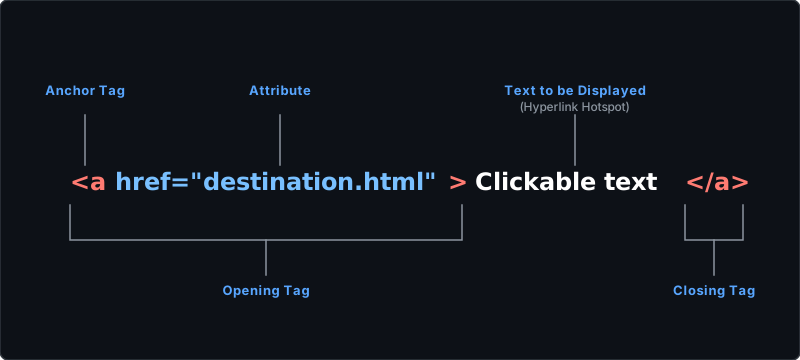
An anchor element consists of an opening tag <a> and a closing tag </a>. Inside the opening tag, the href (hypertext reference) attribute supplies the destination. The text or content between the tags becomes the clickable area.
<a href="destination.html">Clickable text</a>
The href is the only absolutely required attribute; without it, the anchor is merely a placeholder, not a functioning hyperlink.
Relative vs. Absolute Links
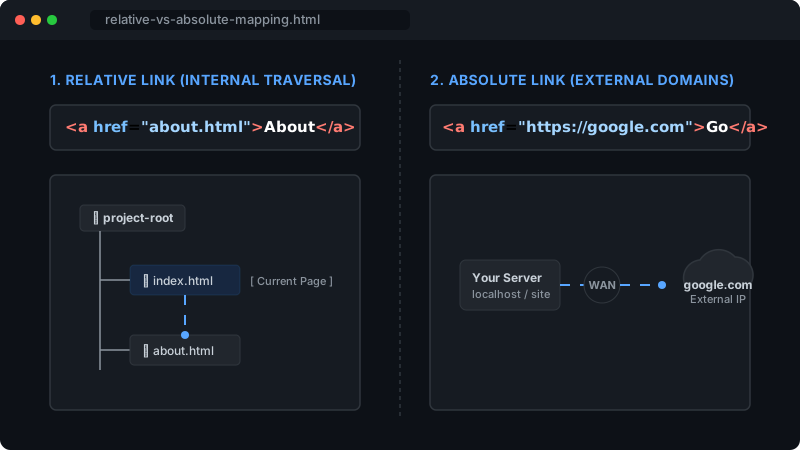
Web architectures use two distinct addressing models:
- Relative links point to files inside the same project or directory tree. They omit the domain name and describe a path from the current document. For example:
about.html. - Absolute links reference resources on external domains. They require the full URL, including the protocol (
https://). For example:https://example.com.
Directory Traversal
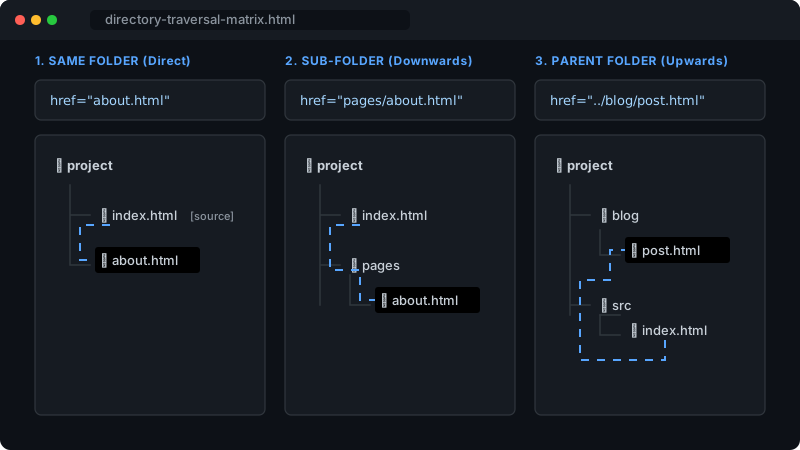
When organising multi‑page projects, you will navigate the folder structure using three common patterns:
- Same folder: file name only –
about.html - Sub‑folder: folder name / file name –
pages/about.html - Parent folder: two dots and a slash (
../) to move up one directory level –../blog/post.html
Fragment Identifiers – Jumping Within a Page
Anchors can scroll the viewport to a specific location on the same page using a fragment identifier. First, give the target element a unique id:
<h2 id="contact">Contact Us</h2>
Then create a link whose href starts with a hash (#) followed by that id:
<a href="#contact">Jump to Contact</a>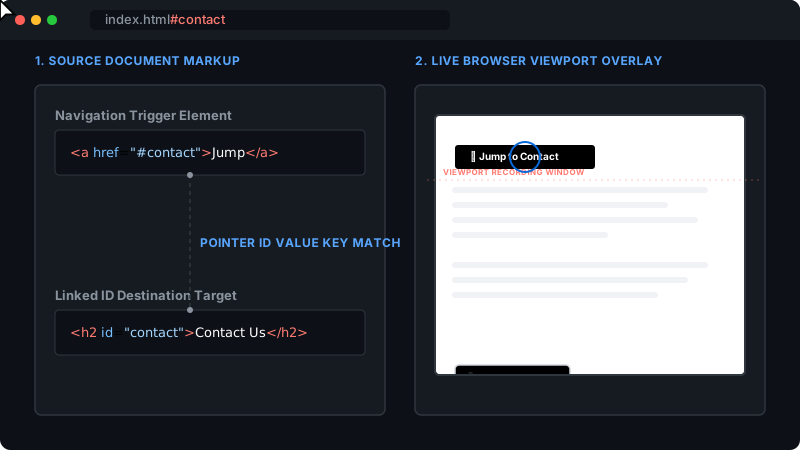
Email Links – The mailto Protocol
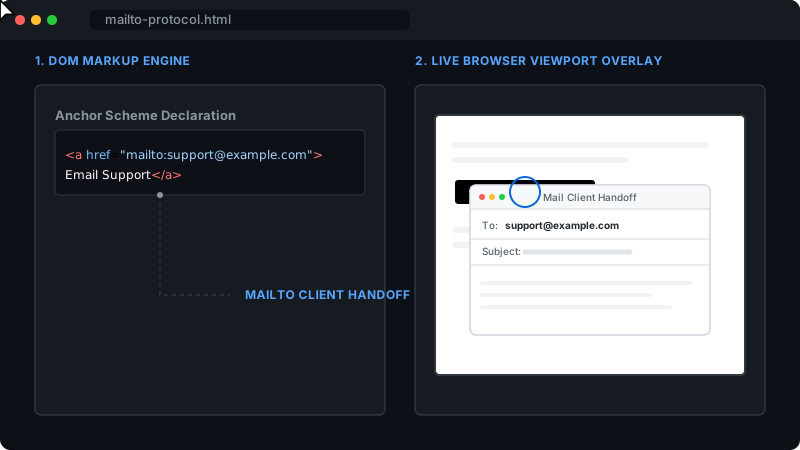
To launch the user’s default email client, use the mailto: scheme in the href:
<a href="mailto:support@example.com">Email Support</a>When clicked, the browser pauses navigation and opens the operating system’s email application with the address pre‑populated.
Linkable Cards – Wrapping Block Content
HTML5 allows the anchor element to wrap around entire block‑level structures, turning a whole card (heading, image, paragraph) into a single clickable area:
<a href="article.html">
  <h2>Article Title</h2>
  <p>A short description…</p>
</a>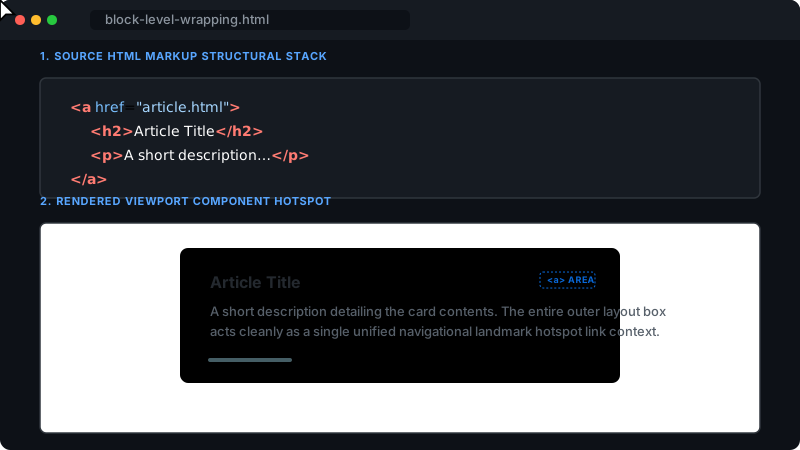
Browsing Context – The target Attribute
The target attribute controls where the linked resource opens:
_self– default; replaces the current page._blank– opens a new tab or window.
<a href="page.html" target="_blank">Open in new tab</a>
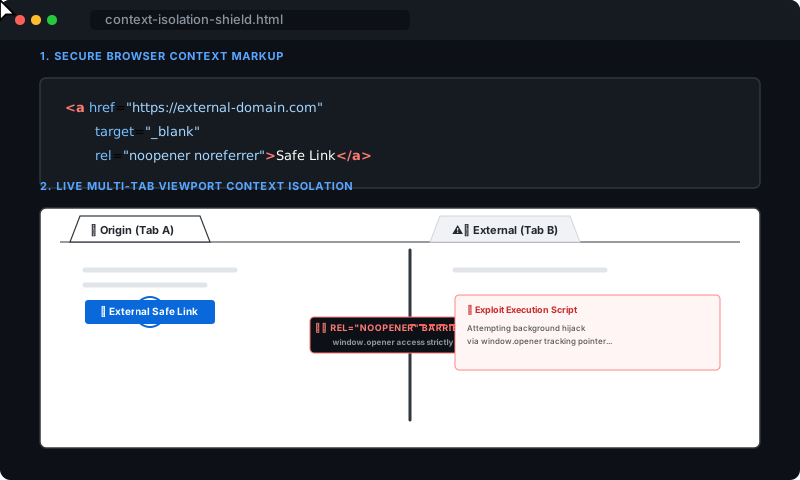
When using target="_blank", you must apply the rel attribute to prevent a security vulnerability:
<a href="external.com" target="_blank" rel="noopener noreferrer">Safe Link</a>
noopener prevents the new page from manipulating the original window, and noreferrer stops the browser from sending the referring URL.
Forced Downloads – The download Attribute
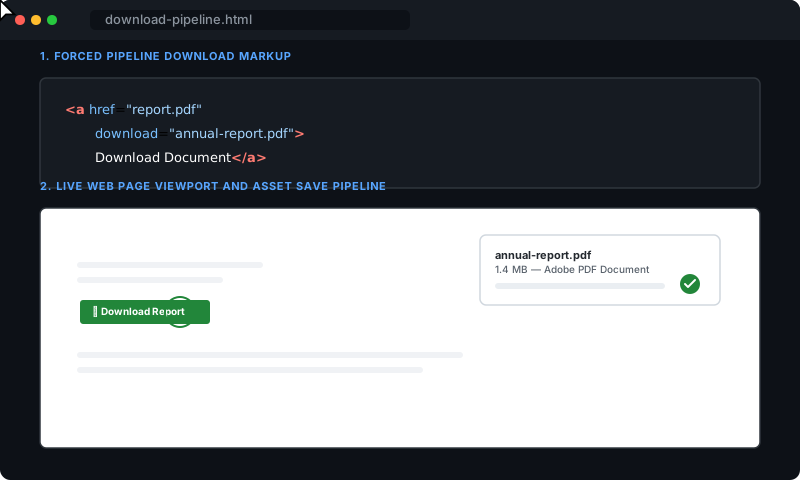
Adding the download attribute instructs the browser to save the linked resource rather than navigating to it. You may optionally specify a file name:
<a href="report.pdf" download="annual-report.pdf">Download</a>
The hreflang and type attributes give the browser early hints about the resource, potentially speeding up the download pipeline.
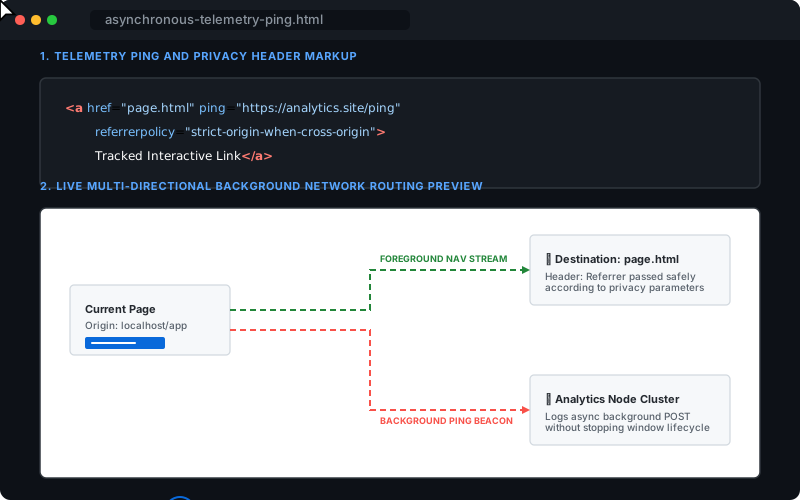
Tracking & Privacy – ping and referrerpolicy
The ping attribute accepts a space‑separated list of URLs. When the link is clicked, the browser navigates normally and, in the background, sends an asynchronous POST request to each ping URL – useful for analytics without blocking navigation.
<a href="page.html" ping="https://analytics.example.com/ping">Tracked Link</a>
referrerpolicy dictates how much information about the source page is sent along with the navigation. Common values:
no-referrer– sends nothing.strict-origin-when-cross-origin– full URL internally, only domain externally.
The javascript:void(0) Anti‑Pattern
A common but harmful practice is placing javascript:void(0) in the href to create a “dead” link that triggers a script. This misuses the anchor element: the browser still treats it as a navigational landmark, confusing assistive technologies and keyboard navigation. If an element exists only to execute script logic, it must be a <button>, not an anchor.
Keep anchors for navigation (href points to a real resource or fragment). Use <button> for in‑page actions.
The anchor element is the universal connector of the web. Master its paths, security attributes, and semantic boundaries, and you will build navigation that is both powerful and accessible.